
Widgets & Embedding
Widgets publish approved testimonials on your website. They load asynchronously, respect consent withdrawals, and can be embedded in common CMS and site builders.
Create and configure a widget
Open Widgets in the sidebar and select New widget. The editor shows the configuration on the left and a live preview (desktop and mobile) on the right:
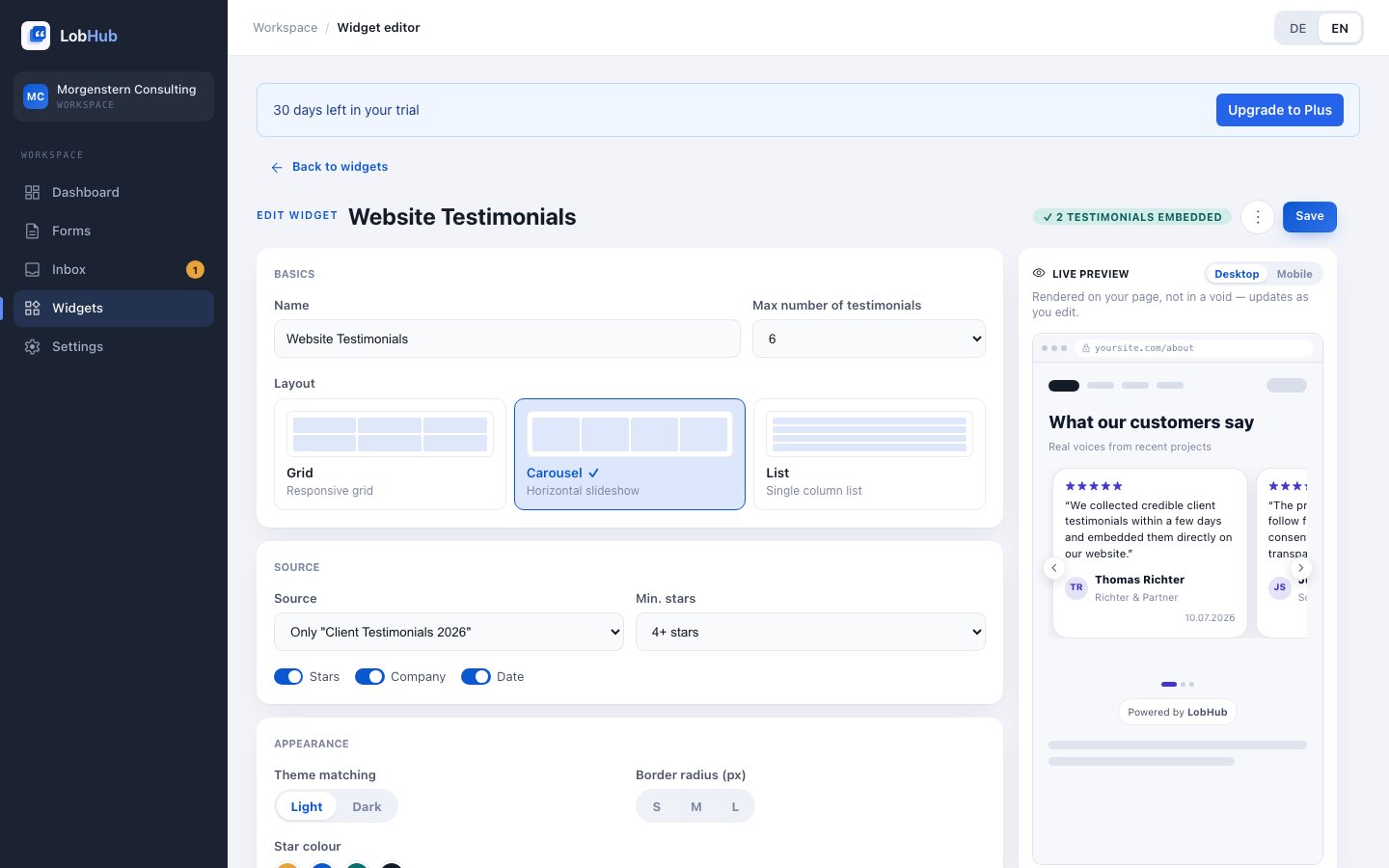
- Basics — name (e.g. “Homepage grid”), layout (Grid — responsive grid, Carousel — horizontal slideshow, List — single-column list), and the maximum number of testimonials.
- Selection — source (all approved testimonials or a specific form), minimum rating (All, 4+ stars, 5 stars), and visible fields (stars, company, date).
- Appearance — theme mode (Light, Dark), corner radius (S/M/L), and star color.
Does the preview show No testimonials available? Then no approved testimonial matches the source and filters — check the Inbox or relax the minimum rating.
Embed on your website
Copy the embed code from the widget editor and paste it into your website:
<script async src="https://cdn.lobhub.de/widget/v1/widget.js"></script>
<lobhub-widget data-id="YOUR-WIDGET-ID"></lobhub-widget>
The script loads asynchronously and does not block page rendering. You can set the widget language with data-lang="de" or data-lang="en". Without it, the widget follows your page language.
Common CMS tools
- WordPress — insert a Custom HTML block and paste the snippet (Gutenberg and Elementor alike).
- Webflow — drag an Embed element to the desired spot and paste the snippet.
- Squarespace — add a Code block and paste the snippet.
- Wix — Embed → Embed HTML, then paste the snippet.
- Your own theme — paste the snippet directly into the template, anywhere HTML is allowed.
No coding skills required — copy, paste, save.
Updates and withdrawals
The widget pulls approved testimonials automatically: new approvals appear without any change to the code. If a customer withdraws consent, the testimonial disappears immediately from the database and usually within about a minute (CDN cache) from your website.
The “powered by LobHub” badge
The badge is visible during the trial. With the Plus plan, you can hide it under Settings → Widget badge.
Delete a widget
Deleting a widget removes it permanently — embed snippets that are still on your pages simply render nothing. You don’t have to remove the code from your website, but it does no harm to clean it up.
Last updated: July 2026